

Our Route Builder is Now Available: A How to Guide

Updated: May 3
Good morning!
You'll have seen all over here and on social media that we've built a walking & cycling route builder which integrates our full library alongside Historic England listings for you to encounter on your walk/cycle.
I'm delighted to tell you the full v1.0 release is available now.
What is the Heritage Route Builder?
The Heritage Route Builder is an interactive tool that lets you plan a walking route through the North East and automatically discover the historic sites, buildings and heritage features that lie along your path. Rather than searching for heritage information separately, the app brings it directly to your route - drawing on all of our archives alongside Historic England's national listed building register. This surfaces everything of interest within walking & cycling distance of the way you choose to go.
The tool is designed for anyone planning a heritage walk, whether a short urban circuit or a longer cross regional route. It works on desktop and mobile, with a dedicated walking mode for use in the field.
I'm going to give a full spec below, with the URL at the bottom of the post for your perusal!

How to use the Route Builder
Step 1 - Plot Your Walk
Tap or click anywhere on the map to place your first waypoint. Each subsequent tap extends your route, which is automatically calculated along walkable paths using live routing data. The route line updates in real time as you add points.
As you build your route, heritage pins appear automatically drawn from the North East Heritage Library databases and Historic England. Each pin is colour-coded by archive: amber for Built Heritage, dark grey for the Coals Archive, deep red for the Sports Archive, teal for the Shipbuilding Archive, and purple for Historic England listed buildings. Tap any pin to see a summary card with title, category, dates, and description.
A running total in the panel shows your current route distance, estimated walking time, and the number of heritage sites found along the way. Tap the distance figure at any time to switch between kilometres and miles. Your preference is remembered for the session.
The elevation profile updates automatically when a route is calculated, showing the gradient of your walk as a colour-coded strip beneath the map. Segments are shaded from neutral through amber to deep orange-red as gradient steepens.
Tips for plotting:
Tap the GPS button to centre the map on your current location
Use the undo button to remove your last waypoint without clearing the whole route
If your route naturally forms a loop, a Close Loop button will appear when your last waypoint comes within 500 metres of the start
Switch between Digital, Satellite, and Historic map layers using the toggle in the top right
The app will alert you if your route extends outside the North East region where heritage data is available
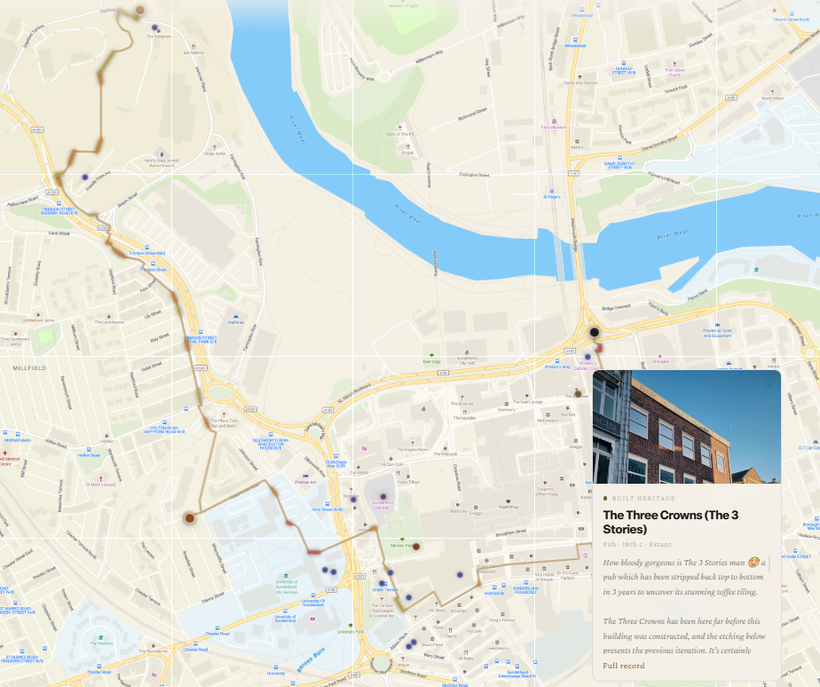
Step 2 - Choose Your Categories
Once your route is plotted, tap Finalise Route. Before choosing individual sites, the app scans everything it has found along your route and presents a category filter screen.
Each category found on your route appears as a pill showing the category name and the number of sites discovered. All categories are selected by default. Deselect any you would prefer to skip - for example, if you are not interested in sports grounds on this particular walk, tap that pill to remove it. You can add them back.

Step 3 - Choose Your Sites
The site chooser presents all heritage sites along your route as cards, ordered by their position on your walk from start to finish. The default selection covers the full length of your route. Sites are spread across the whole walk rather than clustering at the start, ensuring you encounter sites of interest at regular intervals throughout the journey.
Sites from your preferred categories appear first, already selected (shown with an amber On my route pill). Below a ruled divider, sites from categories you deselected appear in a lighter state - still visible and still selectable if you change your mind, but not included in your walk by default.
Use Select all or Clear all to bulk-manage the selection. Use Add more if you want to widen the search corridor and surface additional sites that are slightly further from your route line. This will return you to the category filter so you can refine the expanded results.
When you are happy with your selection, tap Begin walk.

Step 4 - Walk Mode
Walk mode opens a dedicated full-screen map showing your planned route as a coloured line with elevation gradient shading. Heritage pins for your selected sites appear along the route.
Navigation bar (top):
Distance remaining and estimated time to finish
Your current walking instruction
Sites list button — opens a scrollable overview of all selected sites
GPS button (toggles your live location on and off)
Map layer toggle (D / S / H) - switch between Digital, Satellite, and Historic tiles
Exit button — returns to the route builder
As you walk:
Your position is shown as a pulsing dot on the walk map
Heritage pins pulse amber as you approach (within 200 metres) and green as you get close (within 50 metres)
When you are clearly the nearest to a single site, a card appears automatically with the full site description, image, and a link to the full NEHL record
Tap ✓ Mark as visited on a site card to dim its marker
If you stray from your planned route, the app will indicate the direction back to the route line
Sharing and Exporting
From the Finalise screen, a shareable link is generated automatically. This saves your full route into the unique URL. Anyone with the link can open it and see your exact route loaded and ready, without any account or login required. Your route is also saved automatically in your browser session for up to one hour, so closing and reopening the tab will restore your work.
Export formats:
GPX — the standard format for apps like Strava
KML — compatible with Google Earth, Google Maps etc

Feature Summary
Route Building
Click-to-place waypoints with live foot-routing via OpenRouteService
Undo last waypoint
Clear entire route
Close loop (auto-suggested when within 500m of start)
Route length, walking time estimate, and site count updated in real time
Distance display toggleable between km and miles (tap the figure)
Map
Three tile layers: Digital, Satellite and Historic (the 6 inch 1890s OS map)
Elevation gradient overlay on route line (flat / moderate / steep colour coding)
GPS location dot with accuracy indicator
Session auto-save and URL-encoded route sharing
Heritage Data
Four NEHL archives: the Library, Coals Archive, Shipbuilding Archive and Sports Archive
Historic England listed buildings
Pins colour-coded and labelled by archive
Heritage cards with image, title, category, dates, description, and link to full record
Walk Mode
Dedicated full-screen walk map with elevation gradient overlay
Live GPS position tracking
Distance and time remaining (tap to toggle display mode)
Turn-by-turn walking instructions
Off-route detection
Proximity alerts: amber pulse at 200m, green pulse at 50m
Auto-opening site card on close approach (single nearest site only)
Visited state: mark sites as visited to dim marker and prevent re-trigger
Sites overview panel
Export & Sharing
Shareable URL (full route encoded, no account required)
GPX export with elevation
KML export with elevation
Session persistence
As this is the first release version, please bare in mind there may be the odd bug or issue that needs fixing. If you spot any, please let me know!
Kieran


One thing I find interesting about slot games is how results can sometimes seem to arrive in waves. You might get several small combinations close free $100 pokies no deposit sign up bonus together and then go through a stretch where very little happens. When you're watching it in real time, it's tempting to think the game has changed somehow. But a short sequence doesn't really tell you what the next spin will do. I think our brains are naturally good at noticing clusters and patterns, even when they're just part of random results.
This article is very well written and reads pleasantly from start to finish. I appreciated the precision with which the technical details are handled. I appreciated being able to find all this information in one place. This kind of content is hard to find in such a well-structured form.
Ragdoll Hit is the game that always manages to make me smile.
The world of Tiny fishing feels surprisingly alive for such a compact game — the variety of fish really sells it.
This looks a brilliant idea: thank-you for coming up with it, and for all the hard work entailed in reaching this stage 👏
I had hoped to plan out a route first (as an armchair exercise) before setting off, but I couldn't persuade it to let me see information about the sites on the chosen route.